
Download Rochsafe for Windows
Install Rochsafe on each computer that will hold your vault, then activate it with the licence key we send you.

Rochsafe for Windows
Windows 10 & 11 (64-bit)
Rochsafe is being prepared for its first public release. Licensed customers receive the download link with their licence key.
You need a licence key to activate Rochsafe. Request a licence
System requirements
- Windows 10 or Windows 11, 64-bit
- Microsoft Edge WebView2 — built into Windows 11; the installer adds it on Windows 10 if it's missing (this needs an internet connection once)
- Administrator rights to install. Rochsafe installs for every user on the computer
- A Rochsafe licence key
- Recommended: BitLocker drive encryption turned on
Install and activate
Setting up Rochsafe
Do this once on each computer that will hold the vault.
- Step 1
Run the installer
Open the downloaded file and follow the prompts. Windows will ask for administrator permission.
- Step 2
Enter your licence key
Launch Rochsafe. On first launch, paste the licence key from your email to activate it.
- Step 3
Create the vault
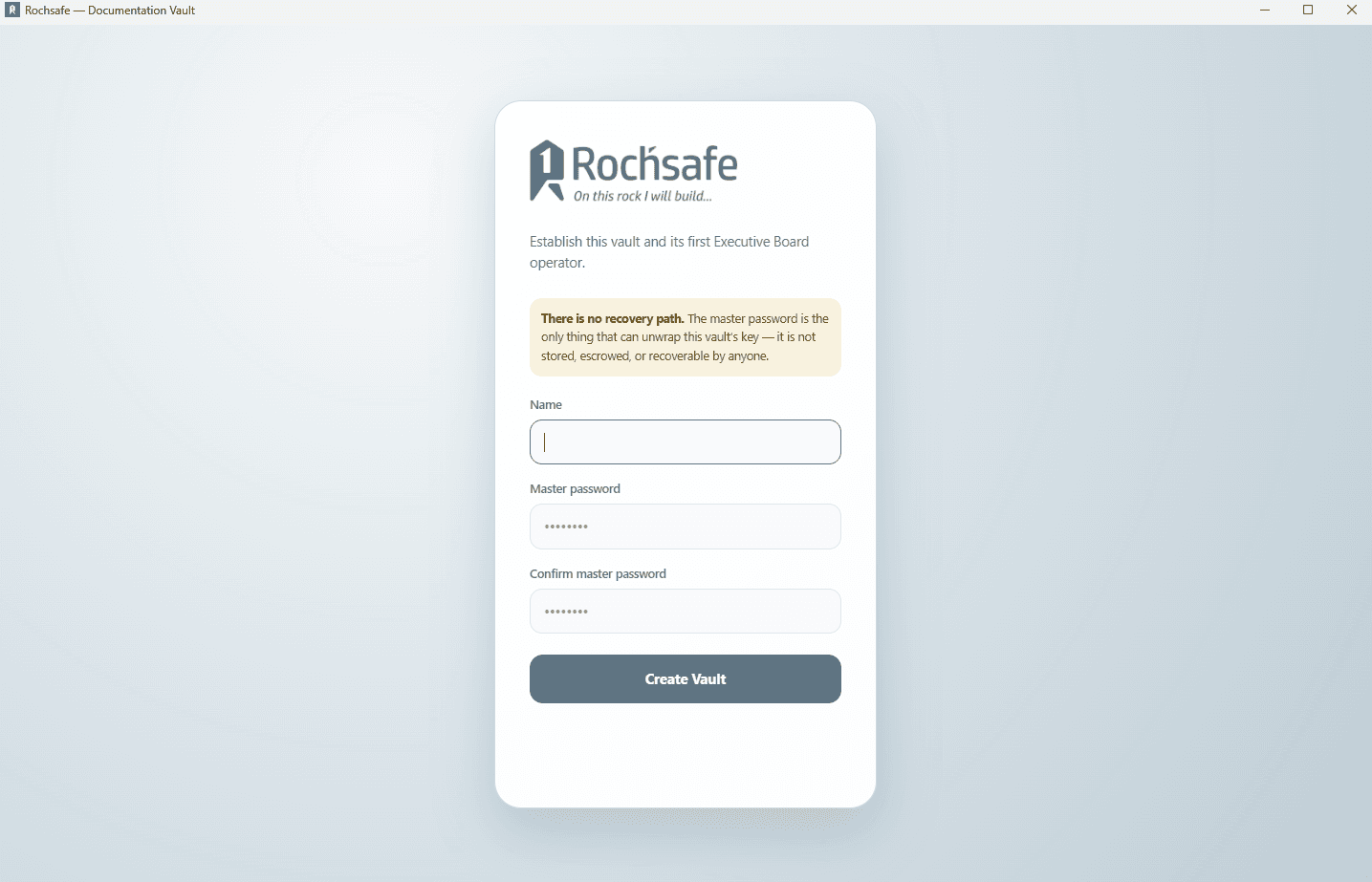
Name the first Executive Board operator and choose a master password. It can't be recovered by anyone, including Qeysten, so store it safely.
- Step 4
Add your team
Add an operator account for each person and give them a clearance level: data entry, legal and asset, or executive board.
First launch
Creating the vault
On first launch, Rochsafe asks you to name the vault's first Executive Board operator and set the master password. That password is the only thing that can unlock the vault's key. It isn't stored or kept anywhere, so write it down and keep it somewhere safe before you start.
Lost your licence key, or need help installing?
Message us and we'll help you get Rochsafe running.